Rankevra Blog
How to Add Users to Google Search Console (Full Guide)
September 26, 2026
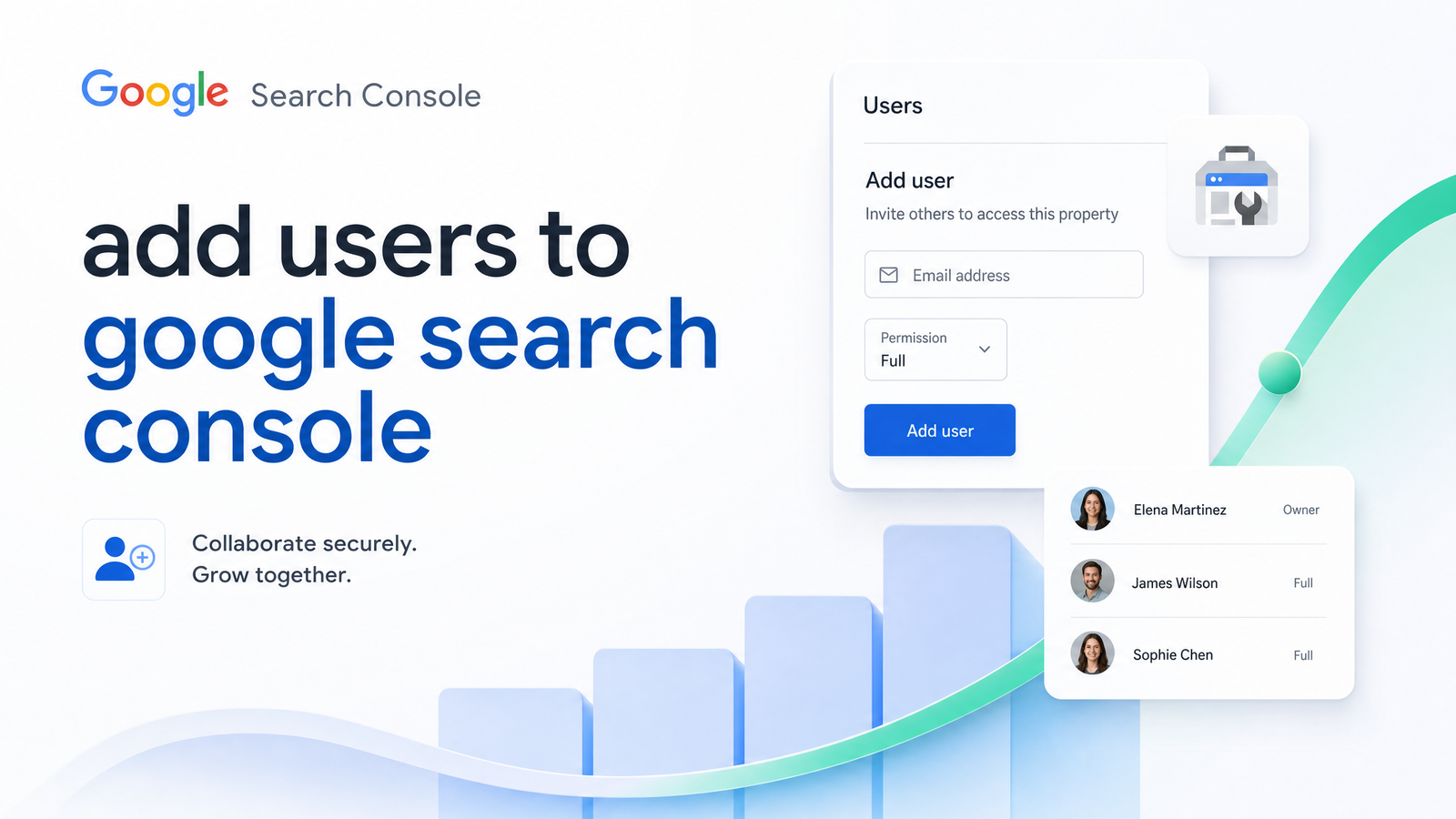
Adding users to Google Search Console takes about ninety seconds once you know where to click. Getting the permission level right—and knowing what happens when that person moves on—is where most site owners actually stumble. This guide covers the fast version first, then the part almost every other tutorial skips.
How to Add Users to Google Search Console: Step by Step
- Sign in to Google Search Console with an account that already has Owner access to the property.
- Select the property (domain or URL-prefix) you want to share.
- Click Settings in the left sidebar.
- Choose Users and permissions.
- Click Add user in the top right.
- Enter the person's Google account email address.
- Choose a permission level: Restricted or Full.
- Click Add.
The new user gets access immediately—there's no invitation email to accept, and no confirmation step on their end. If they don't see the property right away, they should check that they're logged into the Google account you added, not a different one tied to their work profile.
That's the click-path, identical whether you're adding a solo freelancer, an agency team, or a new in-house hire—which is exactly why so many teams get the next part wrong: every one of those relationships needs a different permission level, and Search Console only gives you three to choose from.
Understanding the Three Permission Levels
Google Search Console has three tiers, and the naming is a little misleading if you're used to platforms like Google Analytics.
Owner is the top tier. Owners can add or remove other users, view all data, submit sitemaps, and manage every setting on the property. There are two flavors: Verified Owner (proved domain ownership directly, via DNS record or HTML file) and Delegated Owner (granted Owner status by an existing Owner, without doing the verification themselves). Both have identical permissions inside the tool—the distinction only matters for how they were added.
Full users can see all data, use most tools, and request indexing, but they cannot add or remove other users, and they cannot change verification settings.
Restricted users can view most reports and data but can't take actions like requesting indexing or submitting sitemaps. This is the tier most people should default to for anyone who just needs to check rankings, traffic, or coverage reports.
The mistake we see constantly: giving Full or Owner access to someone who only ever needed to look at data. Permission creep in Search Console rarely causes a security incident, but it does mean nobody remembers, six months later, who can add or remove users on a property that touches your organic traffic.
Choosing the Right Access Level for the Relationship
This is the piece that generic tutorials skip, and it's where the actual decision-making happens.
Agencies managing your SEO long-term. Give the agency's lead a Delegated Owner role, not Full. If they're running technical audits, submitting sitemaps, and managing other contractors on your account, they need Owner-level control—otherwise every small task routes back through you. Reserve this for the agency's primary point of contact, not their entire team.
One-off freelancers or auditors. Full access is usually the right call, and Restricted is fine if they've explicitly said they only need to review data rather than take action. A freelancer doing a single technical audit doesn't need the ability to add or remove other users from your property—there's no ongoing relationship that requires it, and giving Owner access here just adds someone to clean up later.
Internal hires (in-house marketers, developers). This depends on the role, not the title. An in-house SEO manager who owns the strategy long-term should probably become a Delegated Owner eventually, once trust is established—but starting them at Full while they ramp up is reasonable. A developer who only needs to confirm that a redirect or schema fix registered correctly needs Restricted access at most.
Multiple stakeholders inside your own company. Executives or department heads who want visibility into search performance rarely need more than Restricted. They're consuming reports, not managing the property.
The underlying principle: match the permission to what the person actually does, not to how much you trust them. Trust determines who you'd escalate to Owner eventually; the day-to-day job determines what they need today.
The Owner-Eligibility Requirement People Get Wrong
Here's the detail that trips up more people than the rest of this process combined: you cannot grant Owner status to someone who hasn't independently verified the property, or who you haven't added as a Delegated Owner through the verification-linked process. Full and Restricted users can be added by any existing Owner in a couple of clicks. Owner access is different—it requires either:
- The new person verifying the property themselves (DNS record, HTML file upload, Google Analytics/Tag Manager linkage, or another supported method), or
- An existing Owner explicitly promoting them to Delegated Owner from the Users and Permissions screen.
The common failure mode: someone adds a new hire or agency contact as a Full user, and later tries to figure out why there's no option to just "upgrade" that person to Owner from a settings toggle. There isn't one—you have to go back into Users and Permissions and add them again at the Owner tier, or have them verify the property independently. If your organization anticipates needing multiple Owners (say, an agency lead plus an internal SEO manager), it's worth deciding on that structure upfront rather than re-adding people later.
One more wrinkle: if every Verified Owner on a property loses access to their Google account or leaves the company without transferring ownership, nobody can verify a new one without going through Google's alternate verification process, which is slower and sometimes requires proof of domain ownership through your registrar. Keep at least one Owner internally, even if your agency also holds Owner status.
What Happens to Access When Someone Leaves
Search Console doesn't automatically revoke access when an employee leaves your company or a contract ends—it's tied to a Google account, not to your HR system or your contract end date. If nobody manually removes that user, they retain whatever permission level they had indefinitely.
When someone leaves:
- Go to Settings > Users and permissions on every property they had access to (not just your primary domain—check subdomains and any additional properties too).
- Find their email address and click the three-dot menu next to it.
- Select Remove user.
If the departing person was your only Verified Owner and didn't add anyone else at that tier, you're in a harder spot—you'll need someone with access to the domain's DNS settings or hosting account to re-verify the property from scratch. This is exactly why the "keep at least one Owner internally" advice above matters more than it seems like it should. It costs nothing to add yourself as a Delegated Owner alongside an agency's lead; it costs real time to recover Owner status after the fact.
Audit your user list periodically—quarterly is reasonable for most sites. Departed freelancers, agencies you no longer work with, and former employees accumulate in that list, and each one is technically still able to view your organic search data.
Why Access Isn't the Same as Insight
Getting the right people into Search Console with the right permission level solves an access problem, not a performance problem. Once everyone's in, you're still looking at raw click, impression, and coverage data inside a fairly bare interface. Someone still has to pull that data out, spot the technical issues buried in the coverage reports, track ranking movement over time, and turn all of it into content decisions and fixes. Search Console shows you the data; it doesn't tell you what to do with it, and it definitely doesn't do the doing.
That gap—between having access and having answers—is what eats up the hours on most in-house and agency teams. Someone exports data weekly, builds a deck or a spreadsheet, manually flags crawl errors, and separately checks rank tracking in yet another tool.
Let Rankevra Do What Access Alone Can't
Adding users to Google Search Console gets people looking at the right data. It doesn't audit your site, generate the content needed to close topical gaps, publish fixes, or track how your rankings move week over week—that part still falls on your team, manually, across whatever separate tools you've stitched together. Rankevra connects directly to your Search Console property and automates that layer: technical audits, AI-driven content creation and publishing, and rank tracking, all built on the same GSC data your team just got access to. If you've already sorted out permissions, the next step is making that access actually productive—see what Rankevra surfaces from your property in a few minutes.
Frequently Asked Questions
How do I add a user to Google Search Console?
Sign in as an Owner, select your property, go to Settings > Users and permissions, click Add user, enter their email, and choose Restricted or Full access. Owner status can't be granted this way—it requires domain verification or promotion by an existing Owner.
What's the difference between Restricted, Full, and Owner access?
Restricted users can view most data but can't take actions like submitting sitemaps; Full users can view data and request indexing but can't manage other users; Owners have complete control, including adding or removing users and changing verification settings. Choose the tier based on what the person actually needs to do, not how senior they are.
Can I make someone an Owner without them verifying the domain?
Yes, through Delegated Owner status—an existing Owner adds them directly at the Owner tier from Users and Permissions. The alternative is having them independently verify the property via DNS, HTML file, or a linked Google service like Analytics.
Does removing a user from Google Search Console delete any data?
No, removing a user only revokes their access to view or manage the property; historical performance data, sitemaps, and settings remain unchanged. You can re-add someone later and they'll see the same historical data as before.
What happens if my only Owner leaves the company?
If no other Owner or Delegated Owner exists, you'll need to re-verify the property using DNS access, an HTML file upload, or another method tied to your domain or hosting account. This is why it's worth keeping at least one internal Owner even when an agency manages day-to-day SEO work.
Should I give my SEO agency Owner access or Full access?
Give Owner (typically Delegated Owner) access to an agency's lead contact if they manage sitemaps, verification, or other users on an ongoing basis; Full access is sufficient if they only need to view data and request indexing. Match the permission to the scope of their responsibilities, not the length of the contract.
Keep reading
- Zero-Click Search SEO Strategy: A Framework That WorksRankings up, traffic down? Learn a zero-click search SEO strategy built around impressions, AI citations, and the clicks that still convert.
- Local SEO Software: A 2026 Buying FrameworkA clear, non-agency framework for choosing local SEO software in 2026 — what to look for, what AI actually automates, and where Rankevra fits.
- Google Search Console Logo PNG: Where to Get It SafelyFind the official Google Search Console logo PNG and SVG, learn the 2025 redesign, and see Google's trademark rules before using it anywhere.