Rankevra Blog
Google Search Console SEO Audit: A Step-by-Step Method
August 26, 2026
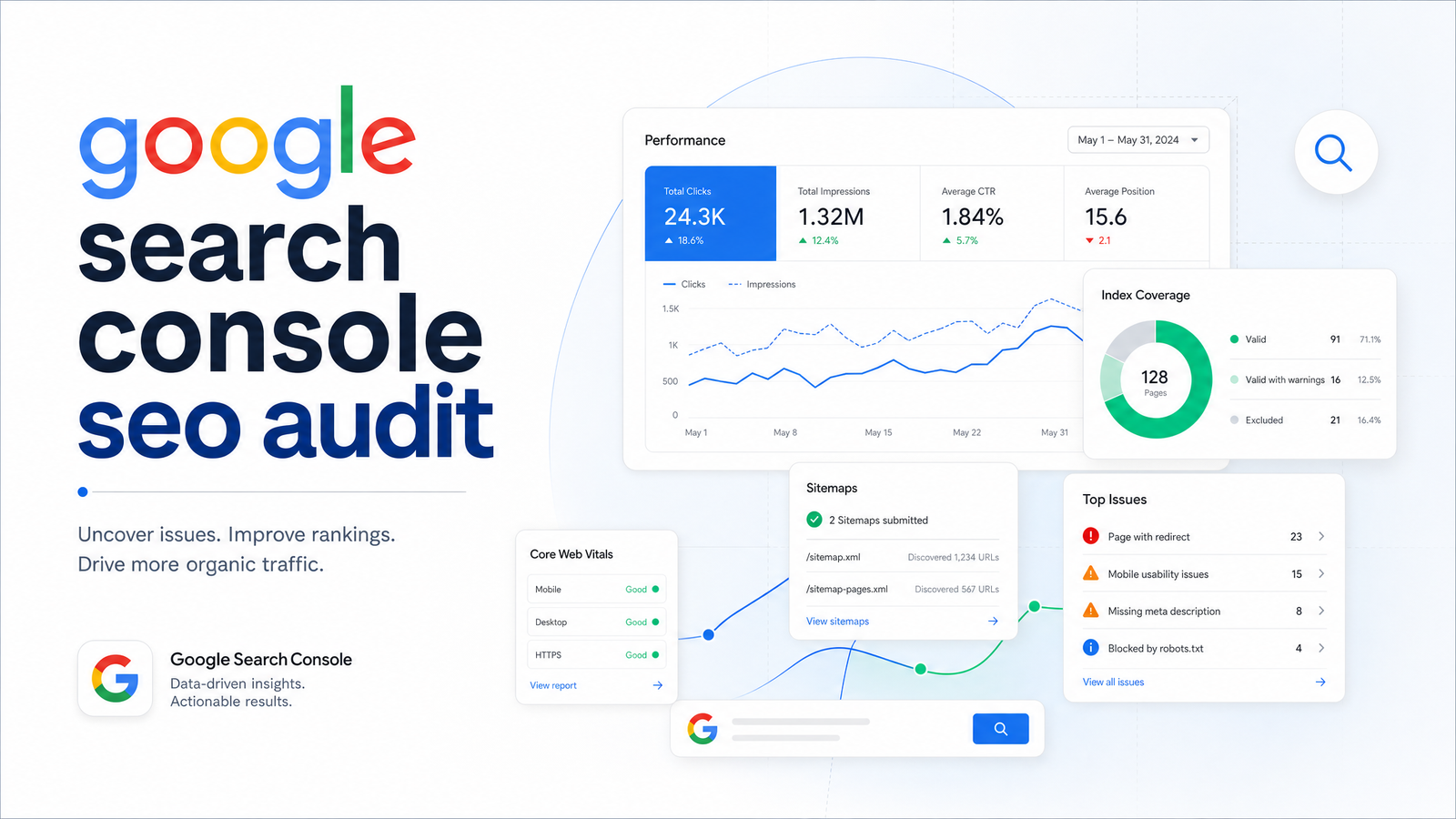
Most guides to auditing SEO in Google Search Console read like a glossary of report names or drown the process in thousands of words. Neither helps when you're staring at the dashboard trying to figure out what to click first. This guide treats Google Search Console as what it actually is — Google's own first-party record of how it sees your site — and walks through it in the order a real audit should happen: indexing, then performance, then experience, then links and manual actions.
If you haven't logged into Search Console yet or aren't sure your property is verified correctly, sort that out first with this Google Search Console login walkthrough before starting the audit itself.
What a Google Search Console Audit Actually Covers (and Doesn't)
A Google Search Console SEO audit gives you data no other tool can: exactly which URLs Google has indexed, which queries and pages generate impressions and clicks, how Google's crawler experiences your pages, and whether external sites link to you or Google has flagged a manual action against you. It's first-party, free, and reflects reality rather than a simulation.
What it doesn't do is crawl your site the way a dedicated SEO crawler would. Search Console tells you what Google has already discovered and decided about your URLs — it won't map your internal linking structure, catch orphaned pages Google has never found, audit on-page elements at scale, or benchmark you against competitors. When an audit turns up widespread indexing gaps, broken internal links, or duplicate content patterns that need mapping across hundreds of URLs, pair this GSC-based process with a full crawl using a site audit tool built for that scale. Search Console is the source of truth for what Google is doing; a crawler finds what Google hasn't told you about yet.
Step 1: Start With Indexing — Can Google Even See Your Pages?
Nothing else in the audit matters if your pages aren't indexed, so this is always step one. Open the Page Indexing report (still commonly called the Coverage report) and look at the split between indexed and excluded URLs.
The exclusion reasons overwhelm most people, since Search Console lists a dozen-plus labels with no built-in sense of urgency. Sort them into two buckets. Urgent reasons that block indexing outright: "Excluded by noindex tag," "Blocked by robots.txt," "Submitted URL not found (404)," and redirect errors — pages you want ranking are either invisible to Google or hitting dead ends. Benign reasons that usually don't need urgent action: "Crawled – currently not indexed" on thin or low-value pages, and "Duplicate without user-selected canonical," which is often just Google correctly consolidating near-identical URLs.
For every URL showing a 404 or redirect issue, the fix depends on whether the page should exist. If it's a real error, fixing 404 errors in Search Console covers the redirect and removal decisions. If excluded pages are duplicates competing against each other, check whether your canonical tags are working — canonical tag troubleshooting covers failure patterns basic audits routinely miss, like canonicals pointing to redirected or noindexed URLs. Cross-reference flagged URLs against your XML sitemap and robots.txt — pages you want indexed should appear in the sitemap and never be disallowed. This is the core of any google search console indexing audit: confirm what's in, understand why the rest is out, and escalate only what's actually blocking visibility.
Step 2: Mine the Performance Report for Quick Wins and Hidden Losses
Once indexing is clean, move to the Performance report — this is where a GSC performance report audit earns its keep by surfacing opportunities you can act on this week.
Filter by queries and sort by position. Look at keywords sitting between position 8 and 20 — striking-distance keywords: pages already relevant enough to rank on page one or two but not yet pulling meaningful traffic. A modest content update, an added subheading, or a stronger internal link often moves these faster than anything else in the audit.
Next, switch the filter to pages and cross-check impressions against clicks. A page with high impressions but low click-through rate is ranking, and Google considers it relevant, but the title tag or meta description isn't earning the click. That's a fast win — rewrite the snippet, don't rebuild the page.
Finally, split queries into branded and non-branded segments. If branded traffic holds steady while non-branded impressions or clicks decline, that's a competitive or algorithmic signal, not a technical fault — someone is outranking you, or a core update reshuffled results. If both branded and non-branded traffic drop together, look back at Step 1; that pattern often points to an indexing or crawling problem rather than pure ranking loss. This distinction separates a technical issue from a content or seasonality issue when working from GSC data alone.
Step 3: Check Experience Signals Without Re-Learning Core Web Vitals
You don't need a refresher on LCP, INP, and CLS to use this report at audit level — you need to know how many URLs are flagged and whether that number is moving in the wrong direction. Open the Core Web Vitals report and note how many URLs fall into "Poor" and "Needs Improvement" versus "Good," grouped by mobile and desktop. Then check Mobile Usability for flagged pages — text too small, clickable elements too close together, content wider than the screen.
At the audit stage, your job is triage, not remediation: identify which URL groups are flagged and roughly how large the affected page count is, then decide whether it's worth a deeper pass. For the actual fixes and evidence on how much Core Web Vitals really influences rankings, the Core Web Vitals SEO impact breakdown covers that ground properly. The audit checkpoint: is the flagged-URL count growing, shrinking, or stable since your last check, and does it correlate with any pages losing rankings in Step 2.
Step 4: Scan Links, Security, and Manual Actions Last
These reports come last because they rarely change week to week, but they catch structural and penalty risks nothing else in Search Console will surface. The google search console links report shows your top linking sites, top linked pages, and internal link counts. A sudden drop in referring domains, or an important page showing near-zero internal links, both deserve a look — the latter is often an internal linking gap rather than an external one.
For anything beyond a surface check — link quality, anchor text patterns, or spam signals from referring domains — the Links report doesn't go deep enough on its own, and a dedicated backlink analysis tool is the right next step.
Then check Security Issues and Manual Actions. These will most often show "No issues detected," and that's what you want. But if a manual action or security issue does appear — hacked content, malware, spam — it overrides everything else in the audit. No amount of content or technical work matters if Google has flagged the site directly, so this section, if triggered, jumps straight to the top of your fix list regardless of workflow order.
Turning the Audit Into a Prioritized Fix List
An audit that ends in a list of observations isn't finished — it needs to become an action plan. Triage everything you found using a simple hierarchy:
- Blocks indexing — noindex tags, robots.txt blocks, broken canonicals, 404s on live pages. Fix these first; they make everything else irrelevant.
- Loses rankings or traffic — striking-distance keywords stuck below page one, low-CTR high-impression pages, declining non-branded queries.
- Hurts user experience — Core Web Vitals and mobile usability flags on pages that matter for conversions or traffic volume.
- Minor polish — benign exclusions, small internal linking gaps, low-impact metadata tweaks.
This four-tier structure is the seo audit checklist logic that keeps you from spending an afternoon on a mobile usability tweak while a noindex tag is quietly hiding twenty product pages. For a more detailed playbook on sequencing technical fixes once triaged, see how to fix technical SEO issues with a priority action plan. For more tactical detail on getting more out of Search Console day to day, these GSC tips go beyond the audit into ongoing usage.
Why This Audit Goes Stale — and How to Keep It Current
The audit you just ran is accurate today and increasingly inaccurate every week after. New pages get published and may or may not get indexed correctly. A deploy changes a template and accidentally adds a noindex tag to a whole section. Core Web Vitals drift as new scripts get added. A competitor's content update pushes your striking-distance keyword back to position 15. Search Console reflects all of this, but only if someone keeps checking it — and a report checked once a quarter is a snapshot, not monitoring.
This is the gap Rankevra is built to close. Instead of manually repeating this same report-by-report walkthrough every few weeks, Rankevra automates the ongoing pull from Google Search Console data, flags new indexing and performance issues as they appear, and connects the audit findings directly to content fixes, publishing, and rank tracking — so the four-tier priority list above stays current without you rebuilding it from scratch each time. If you're managing SEO in-house without a dedicated ops team, that's the difference between running one audit a year and running continuous monitoring that catches problems while they're still cheap to fix.
Frequently Asked Questions
Is Google Search Console enough to do a full SEO audit on its own?
No — Search Console gives you first-party indexing, performance, experience, and link data straight from Google, but it doesn't crawl your site the way a dedicated crawler does. It won't map orphaned pages Google hasn't discovered, audit on-page elements at scale, or benchmark you against competitors, so pair it with a full crawler-based tool for large or complex sites.
How often should I run an SEO audit in Google Search Console?
Check indexing and performance data at least every two to four weeks, since new pages, deploys, and algorithm updates all shift the picture that fast. A one-time audit only reflects the moment you ran it — sites with frequent publishing or active development need closer to weekly monitoring.
What's the difference between the Coverage report and the Page Indexing report?
They're the same report under different names — Google renamed Coverage to Page Indexing, but the data and exclusion reasons work the same way. Long-time GSC users often still call it the Coverage report out of habit.
Why does Search Console show impressions but no clicks for some queries?
This usually means the page appeared in search results but the title tag or meta description wasn't compelling enough to earn a click, or the ranking position was too low to be seen. Check the query's average position — if it's ranking on page two or beyond, low visibility is the more likely explanation than a weak snippet.
Can Google Search Console tell me why my rankings dropped?
Not directly, but it gives you the clues to diagnose it. Compare branded versus non-branded query performance, check the Page Indexing report for new exclusions, and check Core Web Vitals for regressions — together these narrow the drop down to a technical, competitive, or content cause.
Do I need Google Analytics too, or is Search Console data sufficient?
Search Console is sufficient for understanding how Google indexes and ranks your pages, but Analytics adds on-site behavior data — bounce rate, conversions, user flow — that Search Console doesn't track. For a full picture of SEO performance and business impact, use both together.
Keep reading
- Content Decay SEO: How to Detect It and Fix It for GoodLearn to detect content decay SEO issues early, rule out false positives, and build a refresh pipeline that scales — plus how to automate the whole loop.
- Headless CMS SEO: Fixing the Gaps Generic Tools MissHeadless CMS SEO breaks in three predictable places: rendering, metadata, and sitemaps. Here's the diagnostic framework to find and fix each gap.
- Google Algorithm Update Recovery: A Diagnostic FrameworkA step-by-step google algorithm update recovery framework: confirm the cause, segment the damage, benchmark against winners, and set a real timeline.