Rankevra Blog
Google Tag Manager for SEO: What to Track (and Skip)
August 30, 2026
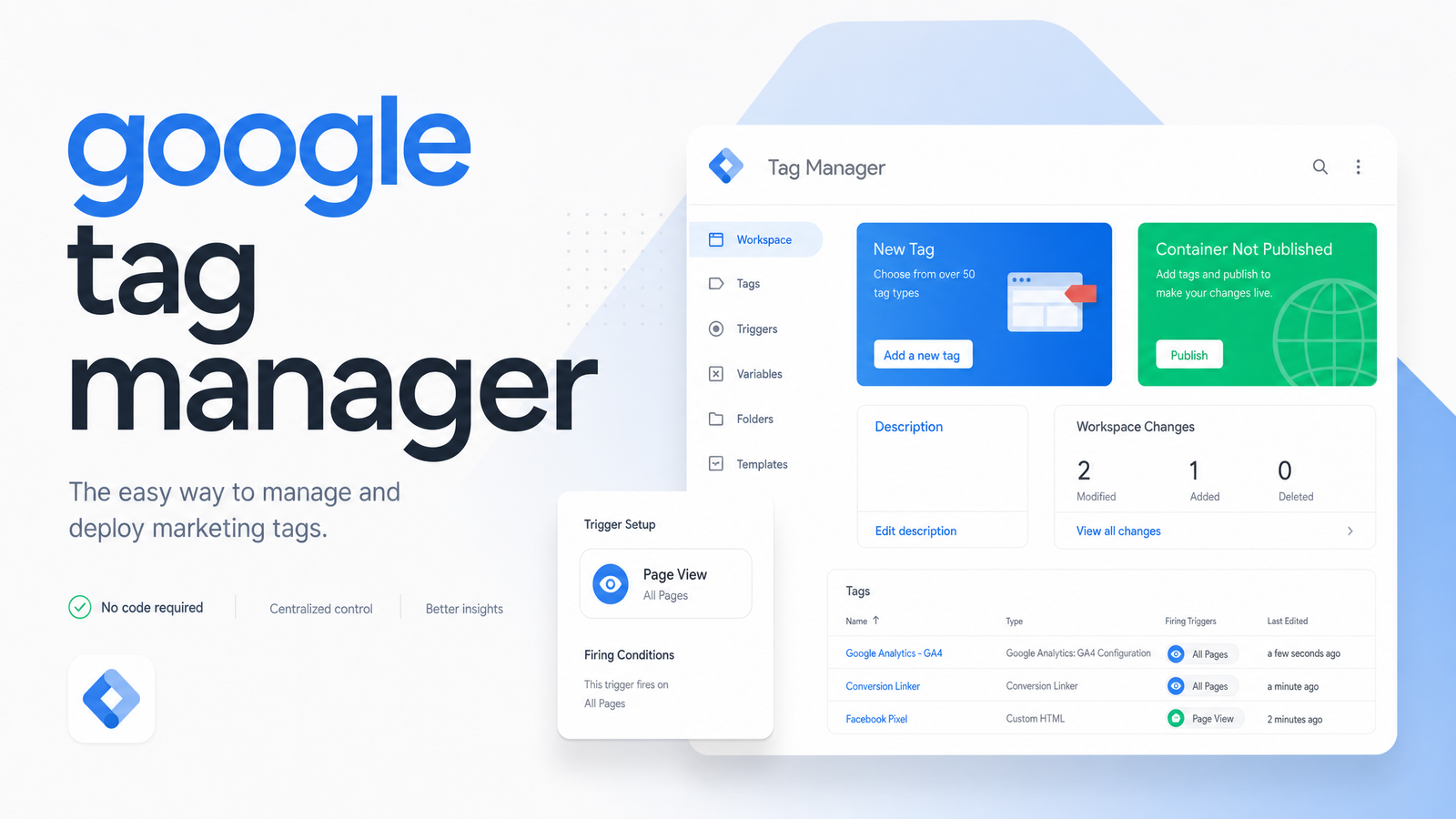
Most Google Tag Manager guides either explain the concept so abstractly you close the tab no wiser, or hand you a forty-step click tutorial that never says which steps matter for SEO. This piece skips both: what's worth firing, what quietly breaks your data, and how GTM fits alongside Google Analytics, Search Console, and an automated SEO tool.
What Google Tag Manager Actually Does (and Doesn't Do)
Google Tag Manager is a container for tags, triggers, and variables — nothing more. It lets you deploy tracking code (GA4 events, conversion pixels, heatmap scripts, JSON-LD schema) through a web interface, without a developer editing your codebase every time marketing wants to measure something new.
That's the entire job. GTM doesn't analyze data, show traffic reports, or tell you how Google crawls your site. It's plumbing, not a dashboard. GTM deploys the tags, GA4 reports on user behavior once those tags fire, and GSC reports on how Google's crawlers and index treat your pages. None of the three replaces the others, and none fixes anything by itself.
Why SEO Teams Should Care About GTM
For a team managing SEO in-house, GTM is mostly about closing gaps in what GA4 sees by default. Out of the box, GA4 tracks page views and a handful of automatic events — it doesn't natively tell you how far someone scrolled on a cornerstone article, whether they clicked an outbound link to a partner site, or whether a lead form submitted successfully.
GTM lets you fire those events yourself: scroll-depth triggers on long-form content, click triggers on outbound or download links, form-submission triggers tied to your actual lead gen flow. Segment that data by organic traffic in GA4, and you get a real read on whether the content ranking for a keyword is actually engaging the people who land on it — not just ranking, but working.
It's also useful for speed of iteration. Need to inject JSON-LD schema for a new content type before a developer sprint opens up? GTM can push it live in minutes (see Schema Markup for SEO in 2026: What Still Works for what's still worth implementing). Want to test a new tracking pixel without touching template code? Same story — though, as covered below, this convenience can be misused.
Setting Up GTM the Right Way: Core Concepts
If you're starting from zero, the mental model is simple: a container holds everything for one site or app. Tags are the snippets that actually do something (send a GA4 event, load a pixel). Triggers decide when a tag fires (page load, click, scroll, form submit). Variables feed both dynamic values — a click URL, a form ID, a page path.
Create the container, install the two-part snippet in your site's <head> and <body>, then build tags against triggers you actually need. Before publishing anything, use Preview mode — GTM's built-in debugger that shows exactly which tags fired on a given page load, in what order, with what variable values. Skipping Preview mode and publishing straight to production is where a lot of avoidable damage happens.
5 Common GTM Mistakes That Hurt SEO
Tag bloat and duplicate tags. Every tag added is another script the browser has to parse and often another network request. Stack enough marketing pixels, chat widgets, and legacy tracking snippets nobody's cleaned up, and page speed problems start showing up in Core Web Vitals — particularly Largest Contentful Paint and Interaction to Next Paint. Our Core Web Vitals Page Speed Optimization: A Fix-It Playbook walks through diagnosing this drag, and Core Web Vitals SEO Impact: What the Evidence Really Shows lays out how much of that penalty actually reaches rankings.
Firing tags on "All Pages" by default. It's the path of least resistance in the trigger dropdown, meaning every tag loads everywhere, whether or not that page needs it. Scope triggers to the specific pages, click classes, or form IDs that matter.
No naming convention. A container with tags called "GA4 Event," "GA4 Event 2," and "New Tag Copy" is unmanageable within a few months, especially with more than one person publishing. A simple prefix system — GA4 - , Conv - , Pixel - — keeps the container searchable as it grows.
Skipping Preview mode before publishing. Live-editing a production container without testing is how broken triggers, duplicate page-view hits, or silently non-firing conversion tags go unnoticed for weeks.
Consent misconfiguration. Tags firing before consent is granted, or blocked entirely when they shouldn't be, both cause real damage — one is a compliance risk, the other quietly guts your analytics.
Consent Mode and Server-Side GTM: What You Need to Know Now
Consent Mode v2 governs how Google's tags behave based on a visitor's consent choices, communicated through four signals: ad_storage, analytics_storage, ad_user_data, and ad_personalization. Your Consent Management Platform (CMP) passes these signals into GTM, and tags adjust behavior accordingly — full tracking when consent is granted, modeled or reduced measurement when it isn't. Google's own Release notes for Tag Manager confirm this is now baseline expected behavior for advertising and analytics tags running through GTM, not an optional add-on.
Getting this wrong in either direction is common: block too aggressively and your GA4 data undercounts real traffic; fail to respect a decline and you've got a genuine privacy compliance problem. A GTM setup guide that skips consent configuration isn't a complete guide.
Server-side GTM (sGTM) addresses a related but separate problem. Instead of every tag running in the visitor's browser, a server-side container — commonly hosted on infrastructure like Google Cloud Run — receives data from the client and forwards it to your endpoints (GA4, ad platforms, etc.) from server infrastructure you control. That means fewer third-party scripts executing directly in the browser, helping both page speed and data quality, since you can filter, enrich, or redact data before it leaves your server. Google's developer documentation on implementing consent mode with server-side Tag Manager is the accurate technical reference if you're evaluating this route. It's a heavier lift to set up and maintain than a standard client-side container, so it's generally worth it once you're running enough tags, or handling enough sensitive data, that browser-side tracking has become a genuine speed or compliance liability — not a default requirement for every small site.
GTM vs GA4 vs Search Console: Getting the Stack Straight
The recurring question — "do I even need all three?" — has a clean answer once you separate their jobs. GTM deploys and manages the tracking code. GA4 analyzes what visitors did once tags fired: sessions, events, conversions, engagement by segment. Search Console reports how Google's index actually sees your site: what queries surface it, which pages get crawled, indexing errors, and manual actions.
None of these tools sees what the others see. GTM has no idea how your site ranks. GA4 has no idea whether Googlebot could crawl a page last week. Search Console has no idea whether a visitor scrolled past the fold. Treating them as interchangeable is the single most common source of confusion for teams managing SEO themselves. For the Search Console side specifically, Google Search Console Tips That Actually Drive Action covers what's worth checking regularly and why.
Where GTM Fits in a Modern SEO Workflow
Once configured correctly, GTM is an instrumentation layer — it tells you what happened. It confirms a form submitted, a user scrolled 75% of a page, an organic visitor clicked through to a related article. That's genuinely valuable input for content and UX decisions.
But instrumentation isn't remediation. Knowing that Core Web Vitals are degrading on mobile doesn't fix the render-blocking script causing it. Knowing organic traffic dropped on a page cluster doesn't tell you whether it's a crawl issue, a content gap, or a ranking algorithm shift — that still takes triage across Search Console, crawl reports, and content audits, usually spread across several disconnected tools. Our How to Fix Technical SEO Issues: A Priority Action Plan covers what that triage typically looks like manually.
This is precisely the gap Rankevra is built to close. Instead of tracking a symptom in GTM and then manually chasing its cause across separate audit tools, rank trackers, and a CMS, Rankevra automates the audit, flags the technical fix, drafts and publishes the content, and tracks rank movement from a single AI-driven workflow — so the signals your tracking picks up actually turn into action, instead of another dashboard nobody has time to act on.
Frequently Asked Questions
Is Google Tag Manager the same as Google Analytics?
No. Google Tag Manager deploys and manages tracking code, including GA4 tags, but has no reporting or analytics interface of its own. GA4 is where you actually view and analyze the data those tags collect — they work together, but serve entirely different functions.
Does adding Google Tag Manager slow down my website?
GTM itself adds one lightweight script, but every tag added inside it adds its own load, so a bloated container with duplicate or unnecessary tags can measurably hurt Core Web Vitals. The fix is scoping triggers precisely, auditing tags regularly, and testing changes in Preview mode before publishing — not avoiding GTM altogether.
Do I need Google Tag Manager if I already use Search Console and Analytics?
Yes, if you want to track events GA4 doesn't capture automatically, like scroll depth, outbound clicks, or form submissions. Search Console reports how Google sees your site, GA4 analyzes visitor behavior, and GTM is the delivery mechanism that gets custom events into GA4 in the first place — they're complementary, not redundant.
How does Google Tag Manager affect SEO directly?
GTM has no direct ranking effect, but it affects SEO indirectly through page speed and data quality. A poorly managed container full of unscoped, duplicate, or slow-loading tags can drag down Core Web Vitals scores, which are a ranking factor, while a clean setup lets you inject schema and track organic engagement without hurting load times.
What's the difference between GTM's client-side and server-side container?
A standard client-side container runs tags directly in the visitor's browser, while a server-side container (sGTM) receives data from the browser and forwards it to destinations like GA4 from server infrastructure you control, often hosted on something like Google Cloud Run. Server-side setups reduce the number of third-party scripts running in-browser and give more control over data before it's sent onward, at the cost of a more complex setup.
Can I use Google Tag Manager without any coding knowledge?
Yes, for most common use cases. GTM's interface handles tags, triggers, and variables through dropdown menus and built-in templates for GA4 and major ad platforms, so firing standard events like clicks, form submits, or scroll depth doesn't require writing code — though custom JavaScript variables or server-side setups benefit from technical help.
Keep reading
- Content Decay SEO: How to Detect It and Fix It for GoodLearn to detect content decay SEO issues early, rule out false positives, and build a refresh pipeline that scales — plus how to automate the whole loop.
- Headless CMS SEO: Fixing the Gaps Generic Tools MissHeadless CMS SEO breaks in three predictable places: rendering, metadata, and sitemaps. Here's the diagnostic framework to find and fix each gap.
- Google Algorithm Update Recovery: A Diagnostic FrameworkA step-by-step google algorithm update recovery framework: confirm the cause, segment the damage, benchmark against winners, and set a real timeline.