Rankevra Blog
Tag Management on Google: The Governance Guide
September 2, 2026
What 'Tag Management' Actually Means in Google's Ecosystem
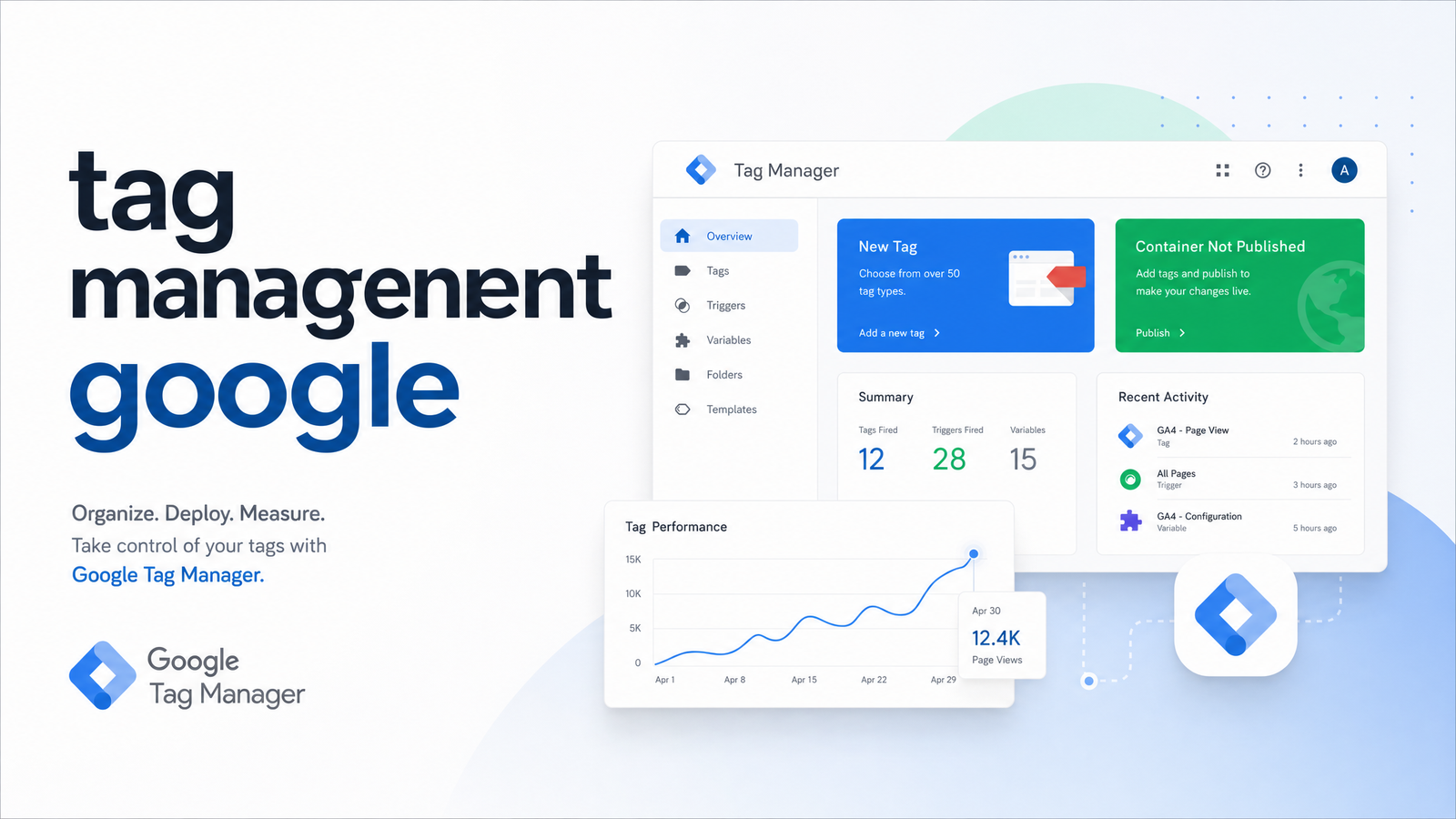
Tag management is a discipline, not a product: centralizing the scripts, pixels, and tracking snippets a website needs — analytics, ad conversion tracking, heatmaps, chat widgets — so they can be added, edited, or removed without a developer touching the codebase every time. Google Tag Manager (GTM) is Google's free tool for doing it: a container that sits on your site and fires tags based on rules you set, instead of hardcoding each one into your templates.
People say "tag management" when they mean "GTM," then assume it's an analytics tool, a ranking tool, or SEO software itself. It's none of those. GTM doesn't collect or report data — Google Analytics 4 does. It doesn't influence rankings directly — it controls which scripts load and when. What it does control, often invisibly, is whether your tracking is accurate and your pages stay fast. Get tag management wrong, and you leak page speed and mislead your entire SEO reporting stack. This article covers not how to install GTM, but how to run it like a system with rules, not a junk drawer.
The GTM Structure: Accounts, Containers, Workspaces, and Versions
GTM's hierarchy is simple once laid out, but rarely explained before login credentials get handed over.
Accounts sit at the top and typically represent an organization — one business, one GTM account. Containers live inside the account, and each maps to one property: your main website, a mobile app, a secondary domain. Comparing accounts vs. containers matters because settings — the specific tags, triggers, and variables — never bleed between containers. A tag built in your main site's container doesn't exist in your app's container unless you rebuild it there.
Below containers, workspaces and versions handle the editing. A workspace is a sandbox: it lets one person or several build and test changes without affecting what's live. Multiple workspaces can exist at once, so team members can work on unrelated tags in parallel. A version is what you get when a workspace is published — a locked, timestamped snapshot of the container, comparable against previous versions or instantly rollback-able.
The mental model: account is the company, container is the property, workspace is the draft, version is the published record. Most "GTM broke our tracking" incidents happen because someone edited live instead of drafting in a workspace, or published without checking what else was sitting unpublished in that workspace.
Governance: Permissions, Naming, and Change Management
GTM has four permission tiers, and treating them casually is where most breakage starts. View lets someone see the container without editing — for stakeholders who just need visibility. Edit allows changes inside a workspace, but not publishing them live. Approve lets someone review and approve a workspace's changes before they go out. Publish is full production access — pushing a workspace live, overwriting what visitors currently see tracked.
The recurring mistake in permission-level debates is treating edit and publish as interchangeable. They shouldn't be. Publish access should sit with a small, accountable group — ideally whoever owns analytics integrity or technical SEO — while marketers, agencies, and junior staff get edit access to build and test. This isn't about restricting people for its own sake; it's about ensuring one unreviewed change doesn't silently duplicate a conversion tag or unfire GA4 tracking sitewide.
Good version-control habits cost nothing but save hours of debugging. Keep one change per workspace rather than bundling unrelated edits — it makes rollback surgical instead of all-or-nothing. Name versions descriptively ("Add GA4 ecommerce purchase event" beats "Update 14"), so anyone scanning history understands what changed without opening the diff. Review version history periodically, not just when something breaks — it's the closest thing GTM has to an audit trail.
Client-Side vs. Server-Side Tagging: Which Do You Need?
Client-side tagging — the GTM default — runs tags in the visitor's browser: the script loads, GTM decides what fires, and each tag makes its own request straight from the user's device to its destination (Google, Meta, an ad platform). It's fast to set up and fine for most sites.
Server-side tagging moves execution to a server container you control, typically hosted on Google Cloud. Instead of the browser talking directly to a dozen third-party endpoints, it sends data to your server, which forwards it under your rules. The gains: you control exactly what data leaves your server (useful for redacting sensitive fields before it reaches a vendor), tracking is more resilient to ad blockers and browser restrictions since requests look like normal first-party traffic, and you get a single point to enforce consent and data governance instead of trusting a dozen scripts individually.
The decision rule is simple. If you're running a handful of tags, don't operate in a high-compliance industry, and aren't losing meaningful conversion data to ad blockers, client-side tagging is still right — a server container adds infrastructure cost and maintenance most small and mid-size sites don't need yet. Move to server-side when managing dozens of tags, needing tighter control over what personal data reaches third parties, or facing real measurement gaps from browser-level blocking. Server-side isn't a maturity badge; it's a tool for a specific set of problems.
Consent Mode: Tag Management's Compliance Layer
Consent Mode adjusts how Google tags behave based on the consent signals a visitor gives — blocking or adjusting cookies from Google Analytics, Google Ads, and related tags until (or unless) a user opts in, while still allowing modeled, cookieless conversion data where consent is denied. It works alongside your consent management platform (CMP): the CMP captures the user's choice, and GTM reads that signal to decide what each tag is allowed to do.
Consent Mode stopped being optional once regulators started treating tag behavior as evidence of compliance, not just intent. Under GDPR and CCPA, tags firing before consent — or firing regardless of a "no" — is a governance failure, not a technical oversight. Consent Mode v2 expanded the signals Google tags read, affecting whether GA4 and Google Ads can use modeled data at all in regions with strict consent requirements. Treating consent mode as a checkbox to enable later, rather than a rule baked into how every new tag gets built, turns a marketing convenience into a legal exposure. GDPR and CCPA tag management should be part of the same change-management process as version naming and publish access — not a separate compliance project bolted on afterward.
Where Bad Tag Management Turns Into an SEO Problem
This is the connection most GTM guides skip entirely. A container accumulates tags the way a shared drive accumulates old files — a pixel for a campaign that ended two years ago, a duplicate GA4 tag added because nobody checked what already existed, a heatmap script never removed after the trial ended. Each adds a script that has to load, parse, and execute, and collectively they weigh down the page.
That weight shows up directly in site speed metrics: more scripts mean more main-thread work, dragging down Core Web Vitals scores like Interaction to Next Paint and Largest Contentful Paint. GTM and Core Web Vitals are connected precisely because GTM is often the biggest single script on the page, orchestrating everything else. For the fuller picture of how load times translate into ranking outcomes, Core Web Vitals SEO Impact: What the Evidence Really Shows breaks down the evidence, and Core Web Vitals Page Speed Optimization: A Fix-It Playbook covers the fixes once you've identified the drag.
There's a second, quieter problem: technical SEO tag issues don't just slow pages, they poison the data you use to prioritize fixes. A duplicated GA4 tag inflates traffic numbers. An unfired conversion tag understates the value of a page you're about to deprioritize. If your reporting is built on a messy container, you're making technical SEO decisions on bad inputs — a bigger risk than the slow page itself. How to Fix Technical SEO Issues: A Priority Action Plan walks through prioritizing fixes once your data is trustworthy, and pairing GTM hygiene with clean Google Search Console Tips That Actually Drive Action gives you a fuller, more reliable measurement picture. If you're pulling this data into stakeholder reports, SEO Reporting Dashboard: What to Include and How to Build It is worth reading before you build the next one.
A messy container — duplicate tags, workspaces sitting unpublished for months, no real version audit trail — is a hidden issue that slows sites and quietly skews the data teams rely on to decide what to fix first. Rankevra's automated site audits are built to surface exactly this kind of downstream symptom — bloated scripts, speed regressions, data inconsistencies — without requiring anyone to manually dig through a GTM container tag by tag. Explore how automated audits catch these issues in Site Audit Tool: What It Checks and How to Use One.
Frequently Asked Questions
Is Google Tag Manager the same thing as tag management?
No. Tag management is the general practice of centralizing tracking scripts so they can be edited without touching site code, while Google Tag Manager is one specific tool — Google's free product — for doing it. Other tag management systems exist, but GTM is dominant because of its tight integration with Google Analytics and Google Ads.
Do I need Google Tag Manager if I already use Google Analytics?
Yes, in most setups — GA4 handles data collection and reporting, while GTM controls when and how the GA4 tag (and every other tracking script) fires on your pages. You can install GA4 directly without GTM, but you lose the centralized control that makes adding new tags, adjusting triggers, or managing consent significantly easier as your tracking needs grow.
What's the difference between a GTM workspace and a version?
A workspace is a draft environment where changes are built and tested without affecting the live site, while a version is the locked, published snapshot created once a workspace goes live. Several workspaces can be in progress at once, but a version only exists after publishing, and it's what you roll back to if something breaks.
Does Google Tag Manager slow down my website?
GTM itself is a lightweight script, but the tags it loads can add meaningful weight if the container is bloated or poorly managed. Duplicate tags, unused scripts, and tags firing unnecessarily on every page are the real cause of slowdowns, and they show up directly in Core Web Vitals metrics like Largest Contentful Paint and Interaction to Next Paint.
Who should have publish access in Google Tag Manager?
Publish access should be limited to a small, accountable group — typically whoever owns analytics integrity or technical SEO — rather than everyone who edits tags. Editors and marketers can work safely in workspaces with edit access, while a designated approver reviews and publishes changes to avoid unreviewed edits reaching production.
Is server-side tagging necessary for a small business site?
No, most small business sites are fine running client-side tagging, since server-side setups add infrastructure and maintenance overhead that isn't justified without a specific problem to solve. Server-side tagging becomes worth the cost when you're managing many tags, need tighter control over data sent to third parties, or are seeing measurable data loss from ad blockers.
Keep reading
- SEO Marketing Tools: The Complete Category Guide (2026)A clear map of every SEO marketing tools category, why stacks sprawl to 6-8 tools, and how AI-driven platforms are consolidating the workflow in 2026.
- SEO Optimisation Tools: Match Them to the Outcome You NeedA no-fluff guide to seo optimisation tools: which categories drive traffic, fix technical issues, or build topical authority — and when to consolidate.
- SEO Optimization Tools: A Framework for Choosing What WorksA practical framework for choosing SEO optimization tools by workflow stage — audit, content, publishing, tracking — instead of drowning in a directory.