Rankevra Blog
How to Add a User to Google Search Console (2024 Guide)
August 27, 2026
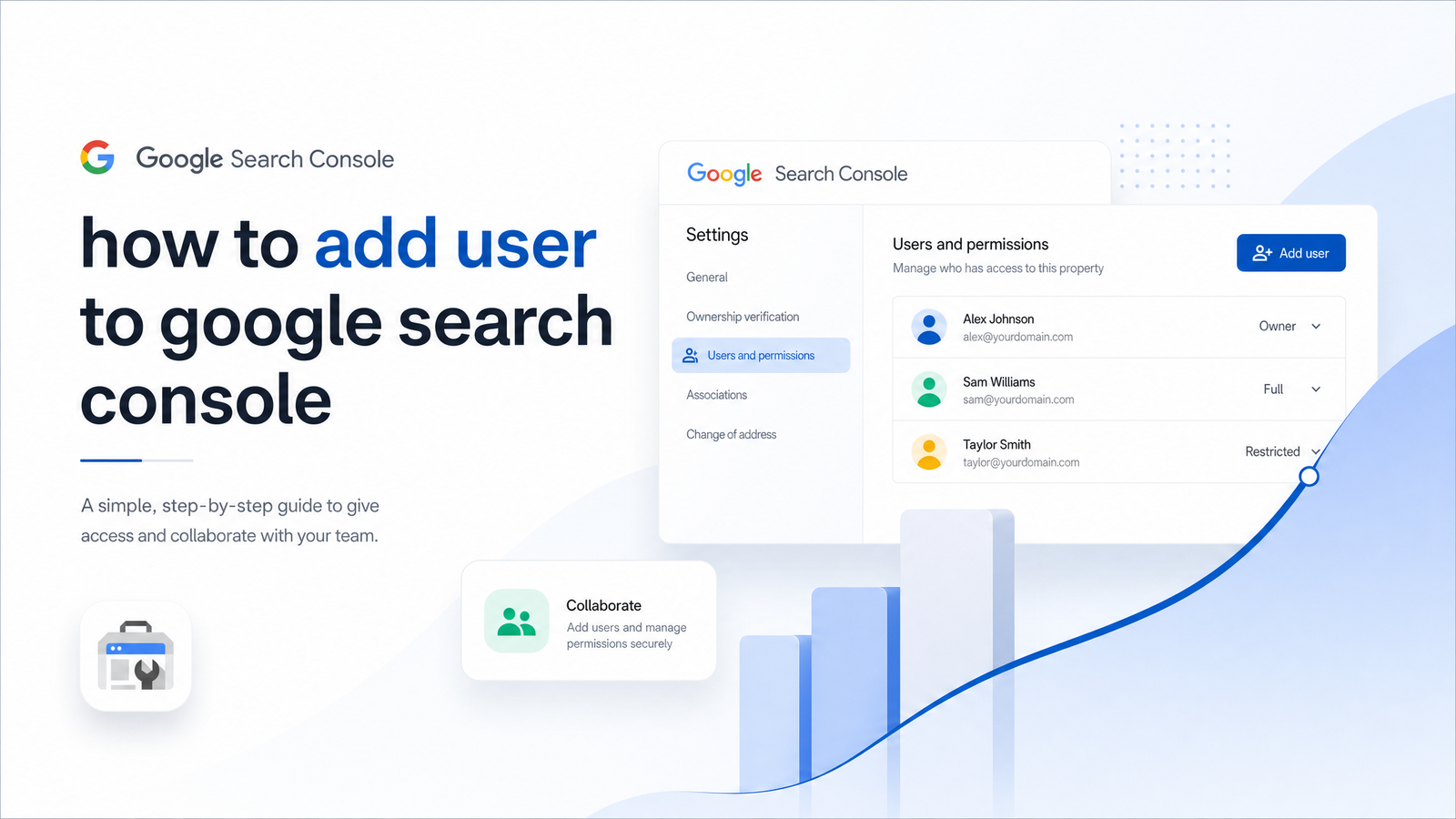
Delegating Search Console access sounds simple until someone gets locked out, an agency ends up with more control than they should have, or a new hire swears they "can't see anything." Knowing how to add a user to Google Search Console properly — with the right permission level from the start — saves you from cleaning up a permissions mess later. This guide walks through the exact click path, the decision that trips up most people, and how to fix it when access doesn't work as expected.
Before You Start: Who Can Actually Add a User
Two prerequisites get skipped in almost every tutorial, and skipping them is why people end up troubleshooting a "permissions error" that isn't really an error at all.
First, only a Google Search Console owner can add users. There are two flavors — a verified owner (proved domain or site control directly, via DNS record, HTML file, or meta tag) and a delegated owner (promoted by an existing owner). Either can grant access, but a Full user cannot, no matter how long they've had access or used the property. If "Users and permissions" is missing or grayed out, this is almost always why.
Second, the person you're inviting needs a Google Account — not necessarily a Gmail address. Any email set up as a Google Account (including custom work emails registered through Google Workspace) works. Plenty of teams assume they need a new Gmail inbox just to grant SEO access, when their existing work email already qualifies.
Once both boxes are checked — you're an Owner, and the invitee has a Google Account — adding someone takes about a minute.
How to Add a User to Google Search Console: Step-by-Step
Here's the current click path, start to finish:
- Go to Google Search Console and sign in with the Google Account that has Owner access to the property.
- Select the correct property from the dropdown in the top-left corner. Permissions are set per property, not account-wide, so double-check you're in the right one.
- Click Settings in the left-hand menu (near the bottom, below Legacy tools and reports).
- Click Users and permissions.
- Click Add user in the top-right corner.
- Enter the invitee's Google Account email address exactly as they use it to sign into Google services.
- Choose a permission level — Owner or Full — from the dropdown. (Restricted access isn't assigned here; it's the automatic default for anyone verified through other means, covered below.)
- Click Add.
That's the entire flow. There's no confirmation email to trigger — once you click Add, access is live immediately and shows up for the user the next time they open Search Console with that account. The interface itself doesn't change often, so once you've done this, you won't need to relearn it.
Owner vs. Full User vs. Restricted User: Which to Choose
This is the decision that causes the most damage when made carelessly.
Owner grants complete control: viewing all data, adding or removing other users (including other Owners), removing verification, and changing settings like Sitemaps, Removals, and international targeting. Owners can also unverify the property entirely — if the wrong person removes verification, you can lose access until you re-verify. Reserve Owner status for people who genuinely need to manage other users or who control the site's hosting/DNS well enough to re-verify it if something breaks: typically you, a co-founder, or a senior in-house SEO lead — rarely an outside agency.
Full user access lets someone view all data (Performance, Coverage, Core Web Vitals, Links, and more) and use most tools, including submitting sitemaps and requesting indexing, but they cannot add, remove, or modify other users' access, and they cannot touch ownership settings. This is the right tier for most agencies, freelancers, and developers doing actual SEO or technical work — enough to run an SEO audit through Search Console, fix indexing issues, and monitor performance, without risk of them locking you out or handing access to someone else.
Restricted user access is more limited: they can see most performance and indexing data but can't use tools that change the property, like submitting sitemaps or requesting URL removals. It isn't actively assigned through the Add User flow — it's what someone gets automatically if they've verified the property another way (like being added as an Analytics user with linked permissions) without being explicitly granted Full or Owner status. It's fine for stakeholders who just want visibility — a marketing manager checking traffic trends — but frustrating for anyone expected to do actual SEO work.
A simple rule: give Owner sparingly, give Full to anyone doing hands-on optimization, and let Restricted cover people who only need to look, not touch.
Users vs. Associates: What's the Difference?
Search Console has a lesser-known concept called an Associate, easy to confuse with adding a regular user since both live under account settings. An Associate isn't granted through "Users and permissions" — it's a linkage requested from a different Google product (like Google Ads) to connect with a Search Console property. Associates get a narrow, product-specific slice of data rather than general property access, and the property Owner must approve the request.
If someone says they were told to "become an associate" to see Search Console data, that's a different mechanism entirely. For anyone who needs to log into Search Console directly and view or manage the property, adding them as a User (Owner or Full) is the correct path — not the Associate request flow.
Fixing the Most Common Access Problems
"I added you, but you can't see the property." Almost always a Google Account mismatch — the person is signed into a different account in their browser than the one you added. Have them check the active account in the top-right corner, or open the property link in an incognito window and sign in with the exact email you granted access to.
No notification email arrived. That's expected — Search Console doesn't send an invitation notification like some collaboration tools do. Access is granted instantly, but you need to tell the person directly (Slack, email, whatever) which account to use. Don't wait around for a confirmation email that isn't coming.
Wrong Google Account entered. Double-check spelling before clicking Add — Search Console won't necessarily flag a valid-but-wrong email as an error, so a typo can silently grant access to a stranger's account instead of your teammate's.
"Users and permissions" or "Add user" is missing. This means you're logged in as a Full or Restricted user, not an Owner. There's no workaround inside Search Console — you need an existing Owner to grant you Owner access or add the new user themselves.
Removing or Changing a User's Access
Access management isn't a one-time task — people change roles, agencies get replaced, contracts end, and if you don't clean up old access, your property accumulates dormant accounts that are just unnecessary risk.
To change or remove access: go to Settings > Users and permissions, find the person's name, and click the three-dot menu next to their entry. You can edit their permission level (say, downgrading a former Full user to Restricted) or delete them outright, which removes access immediately with no confirmation step needed on their end.
Treat this like any other account hygiene task — periodically review who has Owner or Full access, especially after a freelancer's project wraps up or an agency contract ends. Losing track of who still has standing access is a bigger risk than most site owners realize, particularly for Owners who could, deliberately or accidentally, alter verification settings.
One Less Tool to Manage
Adding users, checking permission levels, chasing down why someone can't see data — none of this is difficult in isolation, but it's one more admin task layered onto an already fragmented SEO workflow spanning Search Console, Analytics, a rank tracker, a content calendar, and whatever tool handles technical audits. Teams managing SEO themselves often toggle between five logins just to answer one question about site performance.
An AI SEO platform that connects directly to Search Console reduces how often you need to open GSC's settings menu — audits, content publishing, and rank tracking pull from the same connected data instead of separate manual checks. Once your properties are linked, permission management inside Search Console becomes something you touch rarely, not something you're re-learning every time a new contractor joins.
If you're setting up access for the first time, it's also worth reading through some Search Console tips that actually drive action once your team is in, and if you're also juggling Analytics permissions alongside GSC, this breakdown of Search Console vs. Analytics data is a useful companion read.
Frequently Asked Questions
Can I add a user to Google Search Console without giving them my password?
Yes — that's the entire point of the Users and Permissions feature. You add someone by entering their own Google Account email address, and they sign in with their own credentials; your login and password are never shared or needed.
What's the difference between Owner, Full, and Restricted access in Search Console?
Owner grants full control, including adding/removing users and changing verification settings. Full user access allows viewing all data and using most tools (like submitting sitemaps) but not managing other users. Restricted access allows viewing most data but blocks tools that would change the property.
Why can't I find the 'Users and permissions' option in my Search Console settings?
This menu only appears for property Owners. If you were added as a Full or Restricted user, you won't see it — you'll need an existing Owner to either upgrade your access or handle the user addition themselves.
Does the person I add need a Gmail address?
No, they need a Google Account, which isn't the same thing as Gmail specifically. A work email registered through Google Workspace, or any email already linked to a Google Account, works just as well.
Will Google notify the new user by email when I add them?
No automatic notification email is sent. Access takes effect immediately once you click Add, but you need to personally tell the person you've added them and which Google Account to sign in with.
How do I remove or downgrade a user's access later?
Go to Settings > Users and permissions, find their entry, and use the three-dot menu to either change their permission level or delete their access entirely. The change takes effect immediately with no action required from the other person.
Keep reading
- Content Decay SEO: How to Detect It and Fix It for GoodLearn to detect content decay SEO issues early, rule out false positives, and build a refresh pipeline that scales — plus how to automate the whole loop.
- Headless CMS SEO: Fixing the Gaps Generic Tools MissHeadless CMS SEO breaks in three predictable places: rendering, metadata, and sitemaps. Here's the diagnostic framework to find and fix each gap.
- Google Algorithm Update Recovery: A Diagnostic FrameworkA step-by-step google algorithm update recovery framework: confirm the cause, segment the damage, benchmark against winners, and set a real timeline.